A Button That Sends Command+Shift+3
My iPad lives on a stand most of the day. Videos, presentations, docs, whatever the work needs.
That is fine until I want a capture of whatever is on the screen. Taking the tablet off the stand for a few seconds sounds trivial, but it breaks the layout, moves the camera angle if I am recording, and usually means I lose the exact frame I meant to keep.
Apple already has a hardware shortcut for this. Power plus volume works. It also means lifting or reaching for the iPad, finding the buttons by feel, and hoping the screen still looks the way it did a second ago.
A Bluetooth keyboard works too: Command+Shift+3 saves the whole screen. The catch is that a full keyboard is a lot of desk space for three keys that only ever do one job.
I wanted one button for one screenshot.
So I built a tiny remote out of an ESP32-C3. It shows up as a keyboard named Screenshot Remote, pairs once with the iPad, and types Command+Shift+3 when I press a touch button. The iPad treats it like any other keyboard: one chord, one capture.
All of the firmware sits in BT-Keyboard-Screenshot, in bt_screenshot.py. The BLE keyboard pieces come from MicroPythonBLEHID: copy hid_services.py and hid_keystores.py onto the board next to the script. I did not rewrite HID. I wired a button and taught the board which three keys to press.
The iPad already knew what I wanted
Before I did any connections to the board, I checked what Apple already gives you when a hardware keyboard is connected. I did not want to reverse-engineer Screenshots or Photos. I wanted the same path a normal keyboard already uses.
Command+Shift+3 saves the whole screen. Command+Shift+4 selects a region. I only needed the first one. If the remote could hold Command and Shift, tap 3, and release cleanly, the iPad would do the rest without an app, a shortcut automation, or an Accessibility dance.
The goal was a BLE keyboard that presses Command, Shift, and 3, then lets go of all three. Everything else in the firmware exists so send_screenshot() runs when the link is up and I touch the button.
The button and the LED before Bluetooth
I started with the parts I could prove without radio. Bluetooth can fail in quiet ways. A pin that never goes high fails loudly if you light an LED first.
An ESP32-C3 development kit runs the firmware and gives me a battery connection:

A separate touch-button development kit is the only control: one pad on GPIO 5.

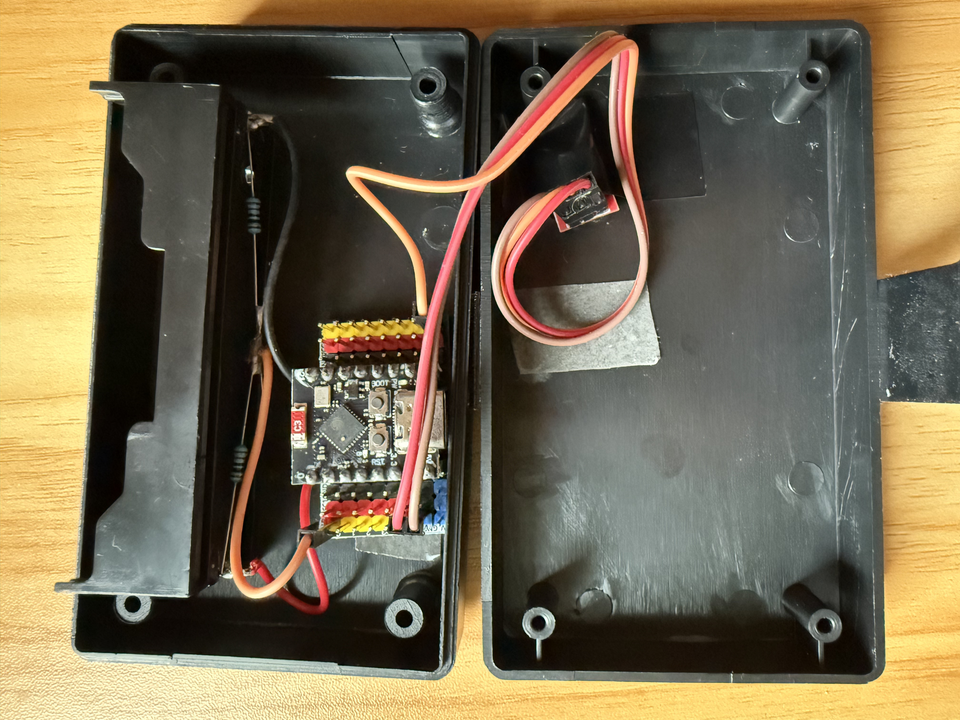
Power comes from a 18650 cell in a holder. The whole stack sits in a random electronics project box so the board, battery, and button live as one remote instead of a breadboard on the desk.

This is how everything looks together:

I wired the touch button so a press pulls GPIO 5 high against the internal pull-down. MicroPython reads 1 while the pad is held and 0 when it is not.
Built-in LED on GPIO 8. On many of these boards the LED is active low, so "on" is 0 and "off" is 1. That polarity bit me once before I remembered it.
TRIGGER_PIN = 5
LED_PIN = 8
led = Pin(LED_PIN, Pin.OUT)
trigger = Pin(TRIGGER_PIN, Pin.IN, Pin.PULL_DOWN)
I tested the touch button and the LED lit up. Wiring first, Bluetooth later. If the LED never lights, chase the pin before you chase pairing.
Pair once, then stop thinking about pairing
Next I needed the iPad to treat the board like a keyboard and keep treating it like one after a reboot. Pairing every morning turns the remote into an afternoon project that never finishes.
I set the device name to Screenshot Remote, handed the library an NVSKeyStore so the bond survives power loss, and started the stack:
DEVICE_NAME = "Screenshot Remote"
keyboard = Keyboard(DEVICE_NAME)
keyboard.set_keystore(NVSKeyStore())
keyboard.start()
There is a one-second sleep at the top of main() so the BLE stack can settle after boot. Then the firmware advertises for up to thirty seconds and waits for a connection. That window is long enough to find the device in Settings if you are already looking, and short enough that a board left alone stops advertising instead of hanging open forever.
On the iPad: Settings → Bluetooth, tap the device, accept the prompt. After that, the keystore remembers the bond. Power cycle the board and the iPad will reconnect without another trip through the menus.
When the timeout expires with no link, the serial log says iPad not connected within timeout.
Typing the chord, and letting go
With the iPad connected, the useful part of the project is two HID reports and two short sleeps. SCREENSHOT_KEY is 0x20, the HID usage for 3:
def send_screenshot():
keyboard.set_modifiers(left_gui=1, left_shift=1)
keyboard.set_keys(SCREENSHOT_KEY)
keyboard.notify_hid_report()
sleep(0.08)
keyboard.set_keys()
keyboard.set_modifiers()
keyboard.notify_hid_report()
sleep(0.05)
Command is the left GUI modifier on a BLE keyboard. The first notify_hid_report() presses the chord. The second one, with empty keys and modifiers, releases it. The sleeps give the host time to see a stable press before the release report lands.
I skipped the release once. The screenshot fired. Then the next thing I typed on a real keyboard arrived with Command and Shift still held. The iPad thought the modifiers were stuck. Always send the empty report. Without it, the remote works once and then poisons every other keyboard until you disconnect Bluetooth or reboot something.
Board connected, chord lands, Photos gains a capture.
One press, not three
A physical button bounces. Hold it down and a naive loop will fire the chord more than once. On an iPad that means a stack of nearly identical screenshots and a Photos library that looks like you sat on the remote.
DEBOUNCE_MS = 50
def is_trigger_pressed():
return trigger.value() == 1
def handle_trigger():
if not is_trigger_pressed():
return False
led_on()
sleep(DEBOUNCE_MS / 1000)
if not is_trigger_pressed():
led_off()
return False
print("Trigger pressed.")
send_screenshot()
print("Screenshot sent.")
while is_trigger_pressed():
sleep(0.05)
led_off()
sleep(0.3)
return True
handle_trigger() turns the LED on, waits 50 ms, and checks the pin again. If the press is still there, it sends the screenshot once, then waits until I release the button before turning the LED off. One hold is one chord. A short sleep(0.3) after release leaves a gap before the next press can count, so a noisy contact does not turn into a burst of captures.
The LED is feedback I can see without looking at a serial console: lit while the firmware believes the press, dark while it waits.
Staying awake while I figure the rest out
I left deep sleep off for the first working build. SLEEP_TIME_MS = 0. The board stays up, watches pin 5, and if the iPad drops the link it starts advertising again. That drains the 18650 faster, but it is easy to debug while you are still deciding whether the chord and debounce are right.
The loop:
print("Waiting for trigger on pin", TRIGGER_PIN, "...")
while True:
if wait_for_connection(timeout_s=5):
if is_trigger_pressed():
handle_trigger()
else:
led_off()
else:
led_off()
print("Lost connection, advertising...")
keyboard.start_advertising()
sleep(0.05)
- Make sure we are still connected (or advertise for a few seconds).
- If the button is down, handle the trigger.
- If we lost the link, print
Lost connection, advertising...and show up in Bluetooth again.
That version lived on my desk for an afternoon of presses. The iPad stayed paired. Screenshots landed. Once that path was boring, I could think about sleep without mixing three failures into one.
Sleep, later
I wrote the sleep path into the firmware, but I have not tested it. The 18650 keeps the remote portable, but I have not chased runtime yet, so I left deep sleep alone.
Setting SLEEP_TIME_MS above zero is how it is meant to work. On the way down, go_to_sleep() arms esp32.wake_on_ext0 for GPIO 5 going high, turns the LED off, and calls deepsleep(). On the way up, main() has to connect again before it can type. If the button is still held after wake, it fires immediately; otherwise it waits for a press, then sleeps again. That reconnect step is where a sleep build can look dead even when the wake pin worked.
The awake path is the remote I use. Sleep can wait until I care about the radio sitting open between presses.
Closing the stand
If you want the same remote, the script and pins are in BT-Keyboard-Screenshot.
Wire GPIO 5, prove the LED, pair once, then watch for Screenshot sent.
The chord is the only iPad-specific part. Change those three keys and the same board can type something else.
Follow me on Twitter: https://twitter.com/DevAsService
Follow me on Instagram: https://www.instagram.com/devasservice/
Follow me on TikTok: https://www.tiktok.com/@devasservice/
Follow me on YouTube: https://www.youtube.com/@DevAsService
Comments ()