How to Build and Publish a Python Package to PyPI (With a Real Project)
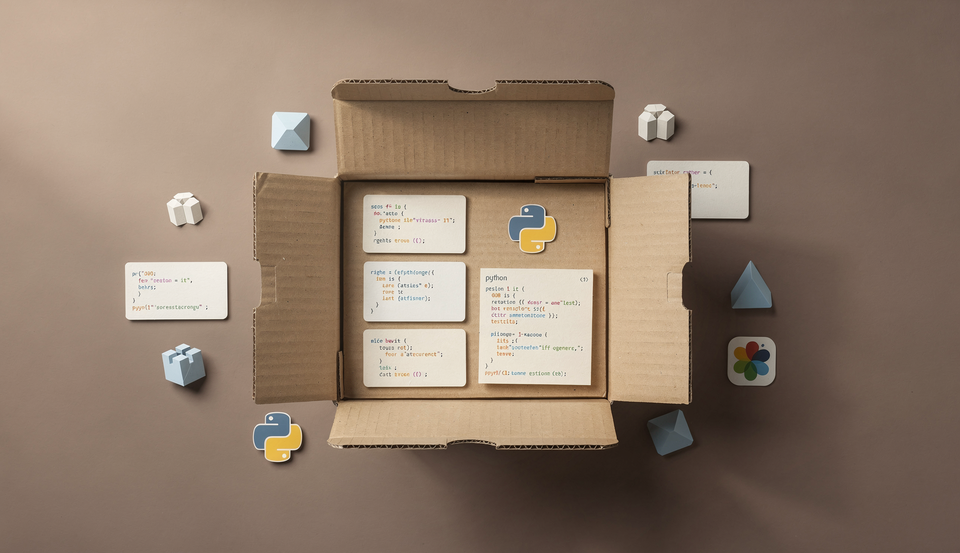
You've written a useful Python utility, a helper for parsing files, a small data tool, or a class you keep copying between projects. At some point you think: I wish I could just pip install this. You can, and it's simpler than it looks.
Packaging your code and publishing it to PyPI (the Python Package Index) forces you to treat your code as a product: clear interfaces, versioning, and documentation others can follow. A published package is also a credibility signal, you didn't just write code, you shipped it.
In this tutorial we'll build tinyfiledb, a lightweight file-based database that stores, retrieves, updates, and deletes records in a local JSON file. No server, no migrations, no dependencies. It's small by design so we can focus on the packaging workflow.
By the end you will have:
- A properly structured Python package
- A
pyproject.tomlconfigured and ready - A package built and published to PyPI
- A working
pip install tinyfiledbyou can share
The Project: A Tiny File Database
tinyfiledb is a minimalist file-based database: no server, no ORM. It stores records as JSON and exposes a simple Python API:
insert(record)- add a record, get back an auto-generated IDget(id)- retrieve one record by IDall()- return every recordupdate(id, data)- merge data into an existing recorddelete(id)- remove a record
 Nuno Bispo
Want to take this further? Here's how to add query capabilities and build a fuller NoSQL layer.
Project Structure
This is the project structure you will use:
tinyfiledb/
├── tinyfiledb/
│   ├── __init__.py
│   └── db.py
├── pyproject.toml
└── README.md
tinyfiledb/db.py
The main project file that contains the tiny database implementation:
import json
import uuid
from pathlib import Path


class FileDB:
    def __init__(self, filepath: str = "db.json"):
        self.path = Path(filepath)
        if not self.path.exists():
            self._write({})

    def _read(self) -> dict:
        with open(self.path, "r") as f:
            return json.load(f)

    def _write(self, data: dict):
        with open(self.path, "w") as f:
            json.dump(data, f, indent=2)

    def insert(self, record: dict) -> str:
        data = self._read()
        record_id = str(uuid.uuid4())[:8]
        data[record_id] = record
        self._write(data)
        return record_id

    def get(self, record_id: str) -> dict | None:
        return self._read().get(record_id)

    def all(self) -> dict:
        return self._read()

    def update(self, record_id: str, new_data: dict) -> bool:
        data = self._read()
        if record_id not in data:
            return False
        data[record_id].update(new_data)
        self._write(data)
        return True

    def delete(self, record_id: str) -> bool:
        data = self._read()
        if record_id not in data:
            return False
        del data[record_id]
        self._write(data)
        return True
Supports full CRUD operations - insert() returns an auto-generated 8-character UUID key, get() and all() read from disk on every call, and update() merges new fields into an existing record rather than replacing it. The file is created automatically on initialization if it doesn't exist.
tinyfiledb/__init__.py
Expose only what users need:
from .db import FileDB

__all__ = ["FileDB"]
Quick Usage
You can test it with this quick usage example:
from tinyfiledb import FileDB

db = FileDB("mydata.json")
user_id = db.insert({"name": "Alice", "role": "admin"})
print(db.get(user_id))   # {'name': 'Alice', 'role': 'admin'}
db.update(user_id, {"role": "superadmin"})
print(db.all())
db.delete(user_id)
Should return:
{'name': 'Alice', 'role': 'admin'}
{'daf0f9fb': {'name': 'Alice', 'role': 'superadmin'}}
Roughly 50 lines of code - enough to be useful, small enough to keep the focus on packaging.
Structuring Your Package
Your project must be laid out so Python's tooling can find and install the package. There are two common layouts:
src/layout - package lives undersrc/tinyfiledb/. Helps avoid importing the local uninstalled copy during tests.- Flat layout - package sits directly in the project root as
tinyfiledb/. Simpler and what we'll use.
The project uses the flat layout:
tinyfiledb/
├── tinyfiledb/
│   ├── __init__.py
│   └── db.py
├── pyproject.toml
└── README.md
Your __init__.py is the package's public face.
Keep it minimal: re-export the main API and set __all__ so the public surface is explicit.
We already did that above.
Writing pyproject.toml
setup.py required running Python just to read metadata. pyproject.toml is a static config file, no code execution. Every modern build tool (Hatchling, Flit, setuptools) and PyPI expect it.
For new packages, it's the only config you need. Create pyproject.toml in the project root:
[build-system]
requires = ["hatchling"]
build-backend = "hatchling.build"

[project]
name = "tinyfiledb"
version = "0.1.0"
description = "A lightweight file-based database for Python projects."
readme = "README.md"
license = { text = "MIT" }
authors = [
  { name = "Your Name", email = "you@example.com" }
]
requires-python = ">=3.10"
dependencies = []
What each part does:
[build-system]- Tells Python how to build the package. Hatchling is fast and needs no extra config for a simple project.name- What users type inpip install. Must be unique on PyPI; use hyphens by convention.version- Semantic versioning; start at0.1.0.description- One-line summary on PyPI; keep it short.readme- PyPI uses this for the project description.license- e.g.{ text = "MIT" }or reference aLICENSEfile.authors- Name/email; shown on PyPI.requires-python- We usedict | Nonein code, so>=3.10.dependencies- Runtime dependencies; empty for tinyfiledb.
Building the Distribution
A distribution is a versioned snapshot of your package that can be uploaded and installed. Python uses two formats; you'll produce both.
Install the build tool
pip install build
Run the build
From the directory that contains pyproject.toml: